You have arrived at this site to get assistance for our remote access products. You should review this page before you proceed to the site . This help page is for Western Health Staff only.
The Staff remote access site is HTTP:\\remote.westernhealth.nl.ca\staff You can bookmark this site and go directly there at any time. In
the future, go directly to this site rather than coming to this
help page.
This site is for employees of
Western Health. It will give you a way of working with our systems from outside
our networks. There are 2 ways to connect...This site will detect what type you
have.
1. From your own or public computers
2. From a corporate device
Option 1. will give you remote access via some Web type ActiveX components. Its
functionality is limited
Option 2. This will give you the best functionality. Just enter your Username
and Passcode (PIN plus token Code) and your device will appear and function as
if on our networks.
Some
products require some special settings on your system in order to function
properly. We have outlined the steps required, and also give you the
option to make the necessary changes yourself or have us attempt do them for
you by using our installation files. Please review the following warning
before you proceed.
Warning: Western Health has provided this service for use on private or
public computers. The products have been tested with basic Windows operating
systems and will install Active X controls on your computer. Western Health is
not the owner of these products and does not express or imply any warranty for
them and or for any damage to your operating system that may occur. Please
ensure the following
1. You have administrative rights on the computer you are installing to.
2. You are on a windows operating machine with a minimum of version , Windows
XP.
3. You are using a compatible browser of IE 7 or above
4. Some products require JAVA . Click here if your not sure you have it. This will open in another window
QUICK START (If you want you may try our installer program which will make all
the setting changes for you)
Click this link and download the file to your desktop CLICK HERE FOR INSTALLER. When prompted please
"SAVE AS" to your desktop
After download is complete , "Double click" or "Right click" the
file and "open or install" the file you saved. It is called WRHASSL.MSI.
Follow all the steps and click NEXT or CONTINUE where required until complete
Reboot your computer just to be sure
Proceed to the login page above HTTP:\\remote.westernhealth.nl.ca\lstaff
The instructions below are for advanced instalation help
DETAILED INSTALATION ( If your having trouble please follow the detailed steps
below that will install and necessary components and set necessary browser
settings)
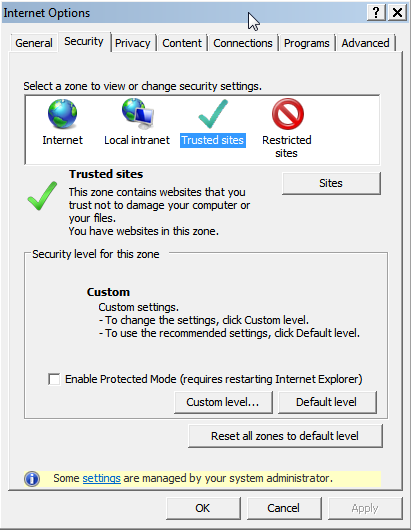
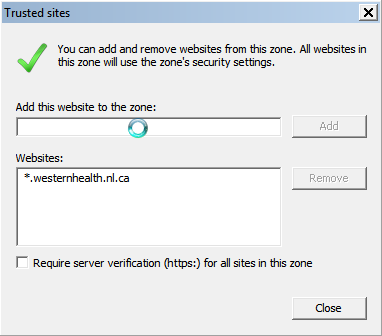
The most important step is to Add Westernhealth as a Trusted Zone
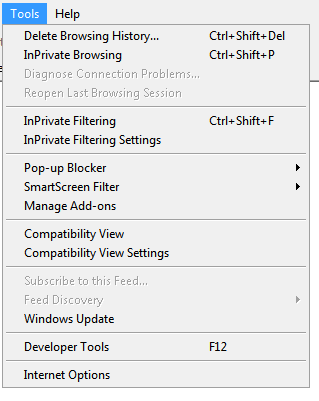
In your Internet Browser click the following.
You need to get to your internet settings, Click Start/run and type in inetcpl.cpl or open your Internet browser and select Tools/options
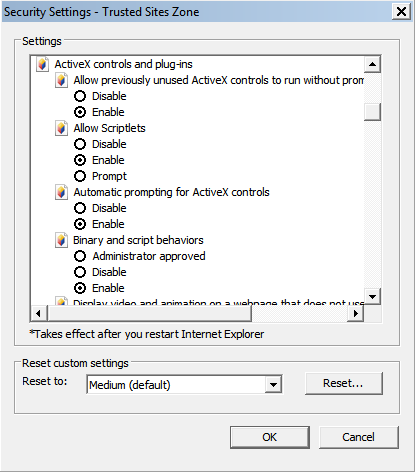
| Allow previously unused ActiveX controls to run without prompt | ENABLE |
| Allow Scriptlets | ENABLE |
| Automatic prompting for ActiveX controls | DISABLE |
| Binary and script behaviors | ENABLE |
| Download signed ActiveX controls | ENABLE |
| Download unsigned activeX controls | ENABLE |
| Initialize and script ActiveX controls not marked as safe for scripting | ENABLE |
| Only allow approved domains to use ActiveX without prompt | ENABLE |
| File Download | ENABLE |
| Access data sources across domains | ENABLE |
| Allow script-initiated windows without size or position constraints | ENABLE |
| Display Mixed Content | ENABLE |
| Navigate Windows and frames across domains | ENABLE |
| Use pop-up Blocker | DISABLE |
| Allow Programmatic Clipboard Access | ENABLE |
Information Systems Staff Only
This SSL connection allows you to connect directly to our I.T. server. Please click
start/run type mstsc and enter whcbit.westernhealth.loc as your connection.